Editor Tools
The MIDI Editor includes four score tools. Open them with the Chop, Flip, Claw, and LFO buttons or their keyboard shortcuts.
These controls and shortcuts also apply to the upcoming 1.10. Playback of tool results uses the editor's shared output, including SYNCore when selected; restart playback after accepting an edit to hear the updated result.
Select notes first when you want a local edit. With no selection, note-based tools target the active track. Previewing an entire dense track can take much more time and memory than transforming a small selection.
Opening a tool creates a preview. Changing its settings replaces that preview from the original state, so repeated adjustments do not intentionally stack the same transformation. Click Accept to keep the result as one undoable edit. Cancel or closing the tool discards the preview.
Splits notes into smaller pieces. Adjust the beat subdivision, time multiplier, and gap; choose whether slicing follows each note's start or the absolute score grid.
Use it for repeated-note patterns or gated rhythms. Start with a short selection, inspect both the note lengths and the gaps, and then accept the result.
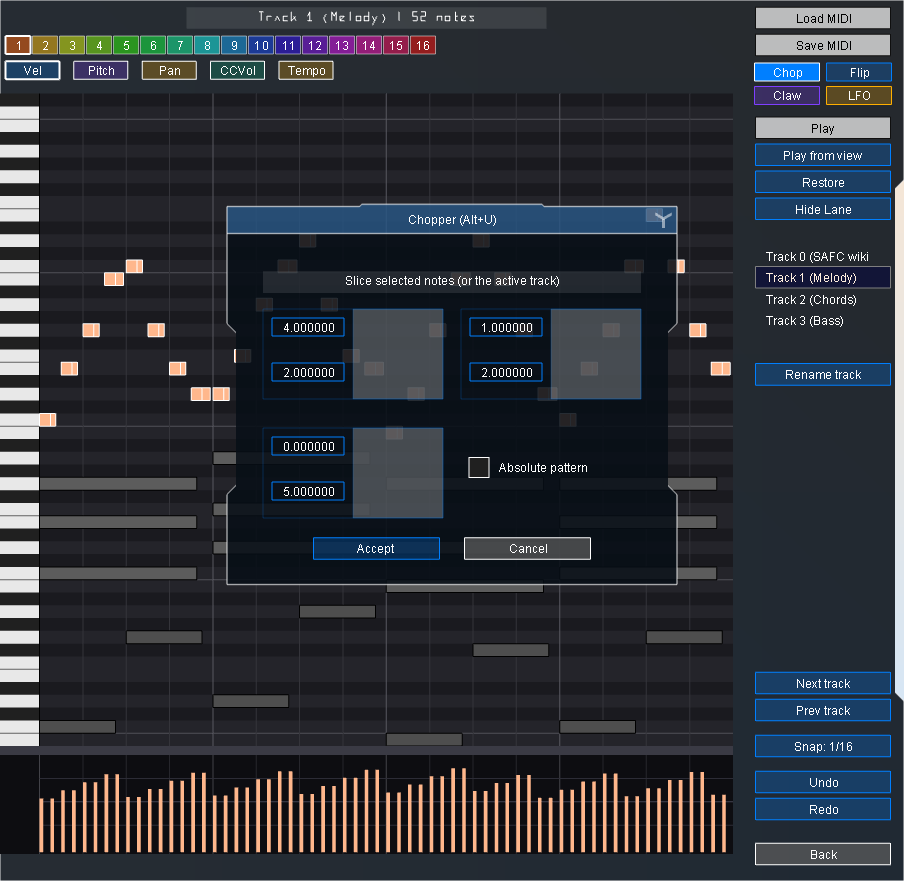
Chopper preview in the v1.9.1.0 development build. The demo melody is divided into shorter notes; the gray chord and bass tracks are unchanged. The preview has not been accepted.
Mirrors note timing horizontally, pitch vertically, or both. Preserve starts changes how a horizontal flip handles note starts and ends.
This transforms the chosen notes. It is not an audio reversal and does not reverse an entire file's controller and tempo history.
Slices periodic regions, removes part of them, and distorts the timing of the remaining pieces. Controls include the period, removal pattern, distortion, removal of very short results, and stretching the output back to its original duration.
This can remove substantial parts of a selection. Inspect the preview before accepting, especially when using it on a whole track.
Writes sine, triangle, or square modulation. Choose the bottom lane before opening LFO, then adjust the center, range, cycles, and phase.
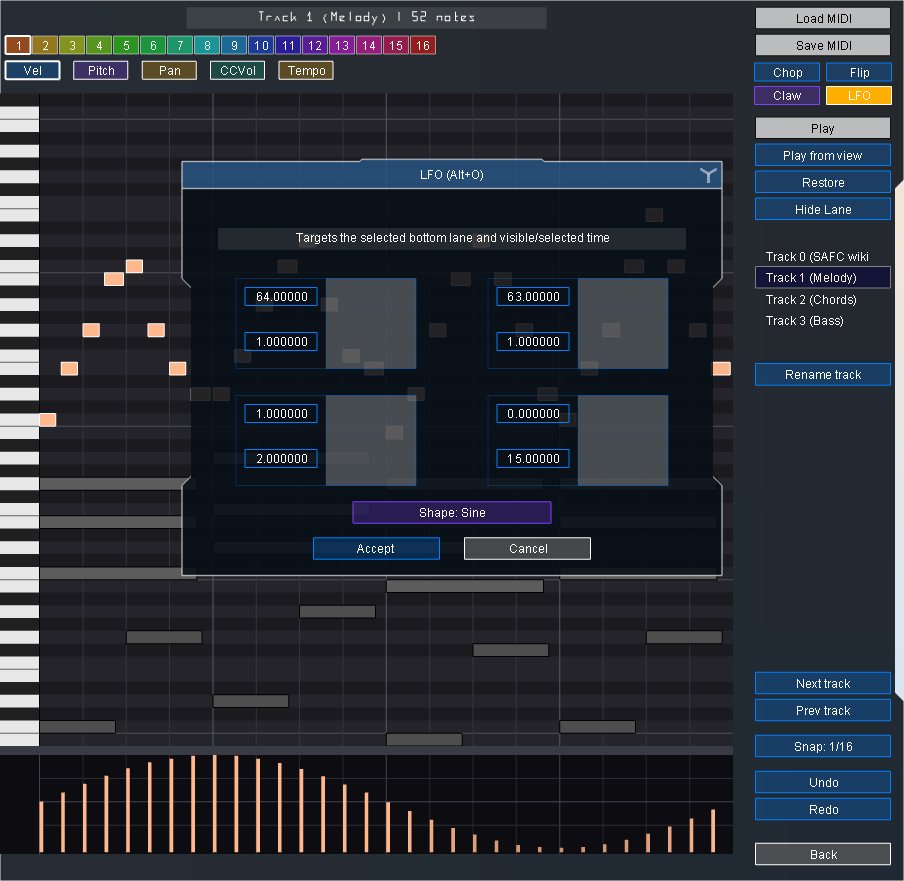
LFO preview in the v1.9.1.0 development build, with Vel selected. The bottom bars show the proposed sine-shaped velocity pattern; note pitches and timing stay in place.
| Active lane | Result |
|---|---|
| Vel | Changes the velocities of the target notes. |
| Pitch | Writes pitch-bend events. |
| Pan | Writes CC10 events. |
| CCVol | Writes CC7 events. |
| Tempo | Unsupported; the UI reports that LFO does not target this lane. |
Velocity modulation follows the selected notes, or the active track if nothing is selected. Controller modulation uses the selected time span, or the visible time range when there is no selection, on the active track and drawing channel. Modulation changes MIDI values; how it sounds depends on the receiving synth and its channel settings.
For a simple linear change, you can instead right-drag a ramp directly in the bottom lane.
Both screenshots use the original demo MIDI. Hover a numeric field or its gray adjustment plate to see its tooltip. See screenshot notes for the capture version and setup.
Source reference, rechecked for 1.10 development on 6 September 2026: tool implementation and tool UI. The screenshots retain their original v1.9.1.0 capture captions.