
Every error in your project in the Problems panel, including files you have not opened: TypeScript, Vue, Svelte, Astro and, if you want it, ESLint.
VS Code only shows TypeScript errors for files that are open. A type error in a file you have not touched stays hidden until you open it or run a build. This has been one of the most requested VS Code features since 2016 (microsoft/vscode#13953). Project Problems fills the gap.
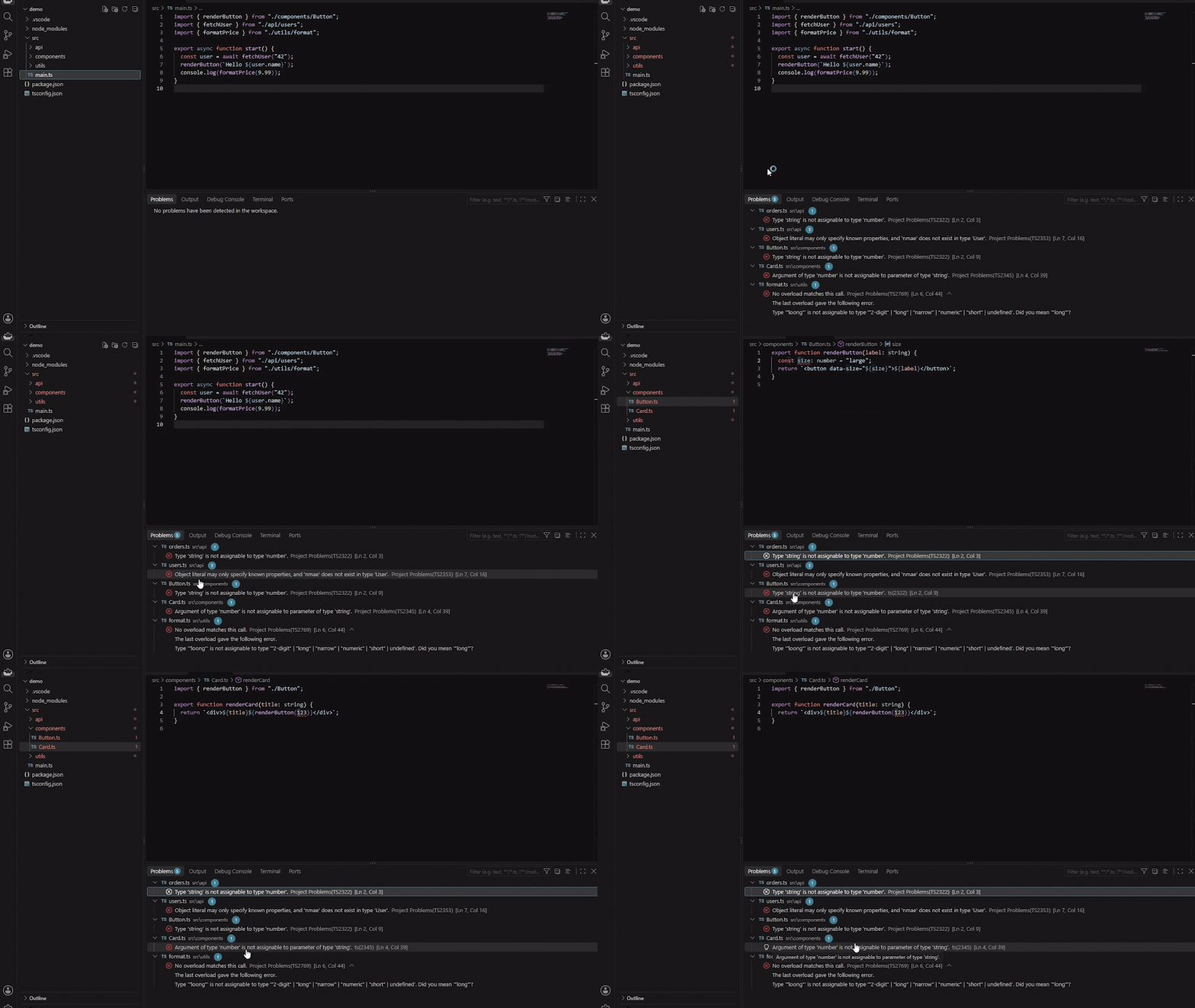
- Finds every
tsconfig.jsonin the workspace, monorepos included, with no setup. - Checks each project with the checker its own build uses:
| Project | Checked with |
|---|---|
| TypeScript, including TypeScript 7 | the project's tsc |
| Vue | the project's vue-tsc, so errors inside .vue files show too |
Svelte (has a svelte.config.*) |
the project's svelte-check |
Astro (has an astro.config.*) |
the project's astro check (needs @astrojs/check installed) |
| ESLint, when turned on | the project's eslint and its own config |
- Lists every problem in the Problems panel and keeps it current.
- Leaves files you have open to the editor's own checking (VS Code's TypeScript, and the Vue, Svelte, Astro or ESLint extension when you have it), so nothing appears twice. Without that extension, open files are listed too, so nothing goes unchecked.
The status bar shows the error and warning count for the whole project. Click it for the log.
projectProblems.mode:
watch(default): each TypeScript or vue-tsc compiler keeps running and updates whenever a file changes. Svelte, Astro and ESLint run when you save.onSave: everything runs when you save a file. Lighter on large projects.manual: everything runs when you run Project Problems: Recheck All Projects, and once when the workspace opens unlessprojectProblems.checkOnStartupis off.
| Setting | Default | What it does |
|---|---|---|
projectProblems.enable |
true |
Turn checking on or off |
projectProblems.mode |
watch |
watch, onSave or manual, as above |
projectProblems.checkOnStartup |
true |
In manual mode, check once on opening and when settings change |
projectProblems.eslint.enable |
false |
Also lint the whole project with the project's ESLint, on save |
projectProblems.eslint.paths |
["."] |
What ESLint checks, relative to each workspace folder |
projectProblems.exclude |
node_modules, dist, build, out |
tsconfig files matching these globs are skipped |
projectProblems.maxProjects |
20 |
The most projects checked at once. Each runs its own checker |
Commands: Project Problems: Recheck All Projects, Clear Problems, Pause or Resume, Show Output.
- It only runs in trusted folders, because it runs checkers from the project's
node_modules. It only follows configs and only uses a checker installed inside the folders you opened, never one elsewhere on your machine. No shell is used, so a folder name can never run as a command. - It uses what the project installs, so a project needs
typescript(orvue-tsc,svelte-check,astrowith@astrojs/check,eslint) in its dependencies. The log says when one is missing. - Projects that use project references are each checked on their own. Types that cross between referenced projects are only checked fully once those projects have been built (tsc -b), the same as TypeScript's own command line. The log says when that applies.
- The TypeScript and ESLint caches live in VS Code's storage for the extension, never in your project.
- It never changes your source files and never goes online. One exception you should know about:
astro checkupdates the project's.astrofolder, the same asastro devdoes.
npm install
npm run build             # type checks and bundles dist/extension.js
npm test                  # parser, config, checker and security unit tests
npm run check:live        # the real compiler on test/fixtures/monorepo
npm run check:edge        # hostile folder names, broken configs, files added and removed
npm run check:frameworks  # the real vue-tsc, svelte-check, astro check and ESLint
npm run check:host        # the whole extension inside a real VS Code
npm run package           # builds the .vsix
The fixtures under test/fixtures need npm install inside each folder first, since they use their own checkers. Two edge folders are named like shell commands on purpose: the test checks they never run.
MIT, Fuad Laguda.