Repository navigation
Development Machine Setup
This page explains how to set up a local development environment for CCOF.
- Vue.js – JavaScript framework for building user interfaces
- Vite – Fast frontend build and development tool
- Vuetify – Material Design component framework for Vue
- Node.js – JavaScript runtime environment
- Express – Minimal and flexible web application framework
- Redis – In-memory data store used for caching and fast lookups
- Google Chrome – Primary development and debugging browser
- Vue DevTools – Browser extension for inspecting and debugging Vue applications
- Postman – Tool for testing and debugging APIs
- RedisInsight – GUI client for managing and inspecting Redis data
💡 Tip: Using the recommended tools will make debugging and local development significantly easier, but they are not strictly required.
This section will provide you with a quick guide about how to setup VS Code for this project. It will give you an overview of the required (and optional) extensions, VS Code settings, and repository setup.
Install Visual Studio Code from here.
Install the following VS Code extensions:
- Auto Import
- ESLint
- Prettier – Code formatter
- Vue Language Features (Volar)
- sort-imports
Optional (Recommended):
- vscode-icons
- One Dark Pro
⚠️ Important: For the sort-imports extension, ensure that the following settings are configured for both User and Workspace:
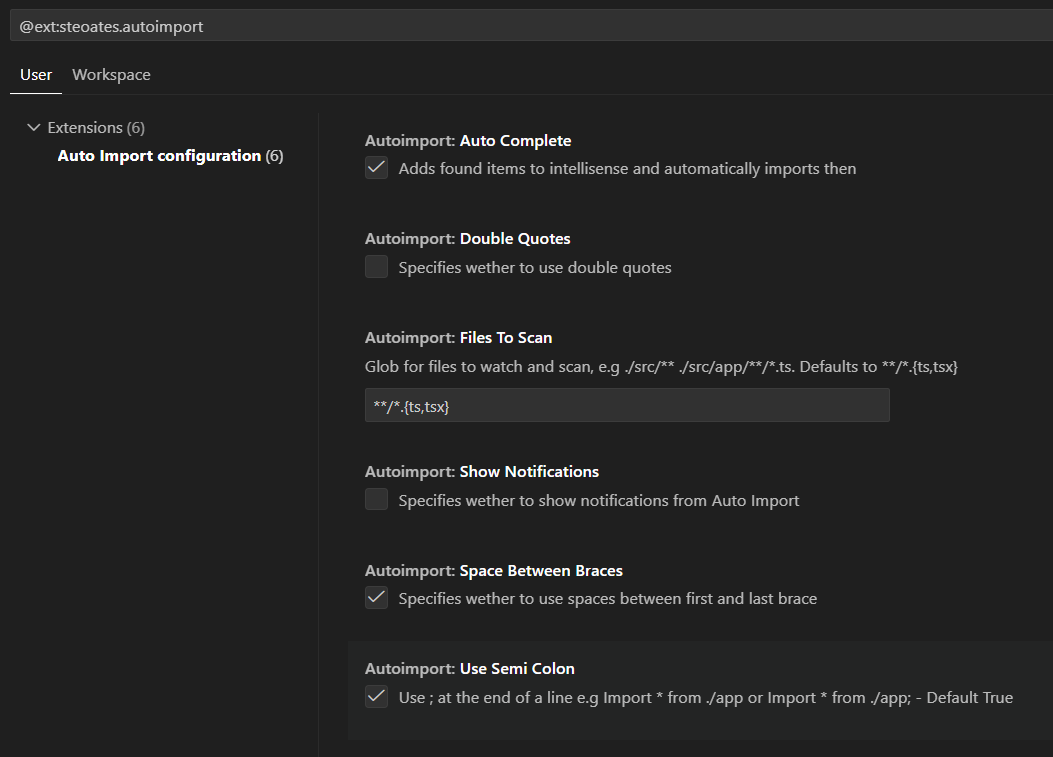
Configure the following settings:
Set Prettier – Code formatter as the default formatter:
- Open Settings
-
Ctrl + ,(Windows/Linux)
-
- Search for Default Formatter
- Set Editor: Default Formatter to Prettier – Code formatter

Enable automatic formatting when saving files:
- Open Settings
-
Ctrl + ,(Windows/Linux)
-
- Search for Format On Save
- Enable Editor: Format On Save

This guide will help you set up the EDUC-CCOF repository and run the application locally.
If you haven’t already cloned the repository, run:
git clone https://github.com/bcgov/EDUC-CCOF.git- Retrieve the local.json file from another developer on the team (e.g., Wes, Viet).
- Place the file in the following location:
backend/src/config/local.json
⚠️ Important: This file is gitignored. Do not commit renamed or relocated versions of this file.
- Launch VS Code.
- Navigate to
File -> Open Folder... -> EDUC-CCOF
- Open a terminal in VS Code
(Ctrl + Shift + `)within the project directory. - Run the following commands:
cd frontend
npm install
npm run serve
The frontend application will start and be accessible at:
http://localhost:8082
- Open a second terminal in VS Code.
- Run the following commands:
cd backend
npm install
npm run serve
The backend server will be available at:
http://localhost:8080